True 0-Nit OLED Blackout Camera & Private Vault.
真 0 尼特 OLED 熄屏相机与双密码私密相册。
Record crisp 4K 60fps lectures, meetings, and night dashcam footage while turning every OLED pixel completely off (#000000). Zero glare, cooler thermals, 1-tap Home Screen Shortcuts, and a 100% offline Face ID video vault.
专为长时会议、大学课堂与夜间无反光记录打造。开启真纯黑 #000000 OLED 零发光录制,显著降温省电;内置网页/电子书阅读同录、桌面一键快捷方式与 100% 纯本地双密码加密保险箱。
Designed for Effortless, Discreet Precision
每一处交互,皆符合直觉
From 0-second Home Screen Shortcuts to dual-space Face ID protection.
从桌面 0 秒直达熄屏开录,到真假双密码独立加密空间。
1. Instant Shortcut Launch
1. 桌面快捷方式秒开
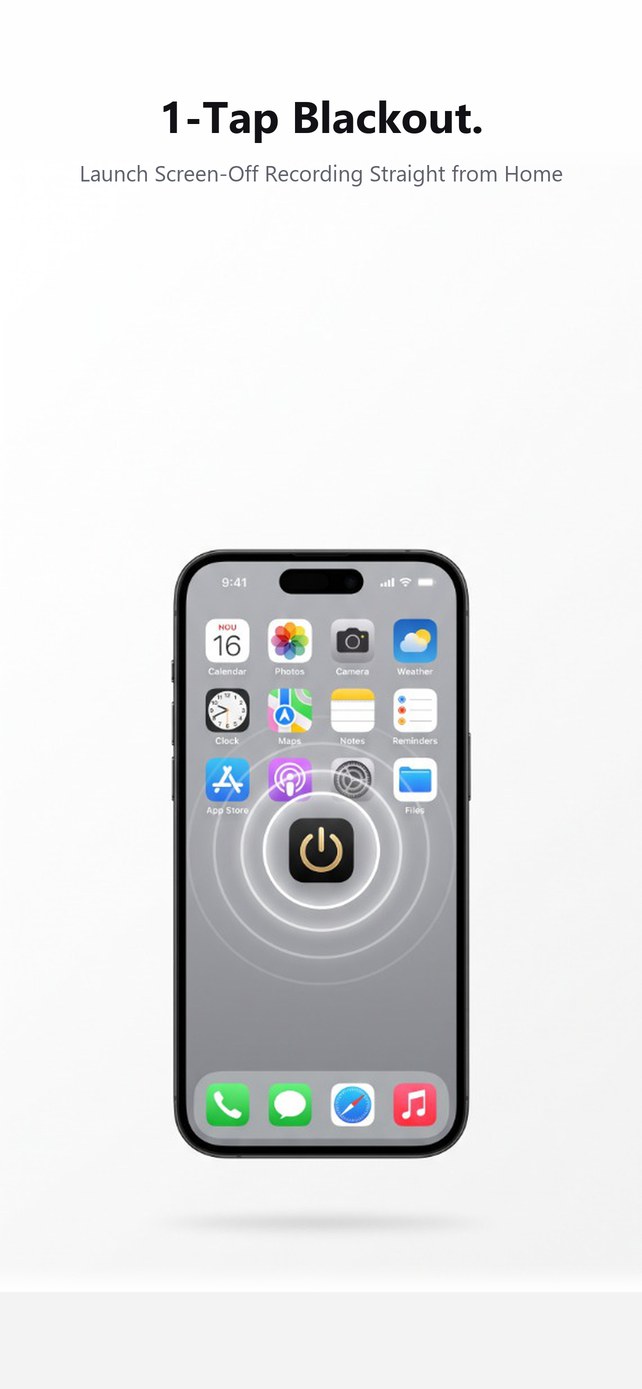
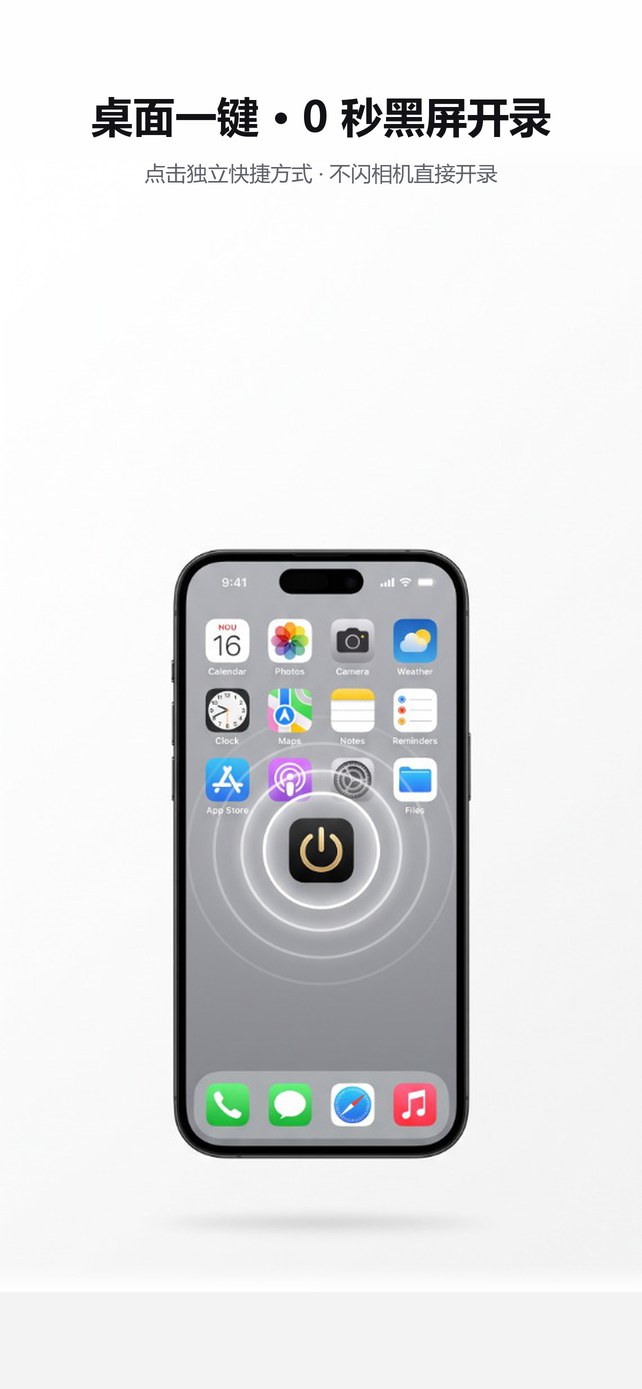
Tap a Home Screen Shortcut, Action Button, or long-press the app icon to start recording in 0 seconds.
支持添加独立桌面快捷图标、绑定 iPhone 侧边操作按钮,或长按主图标弹出 4 项快捷入口。
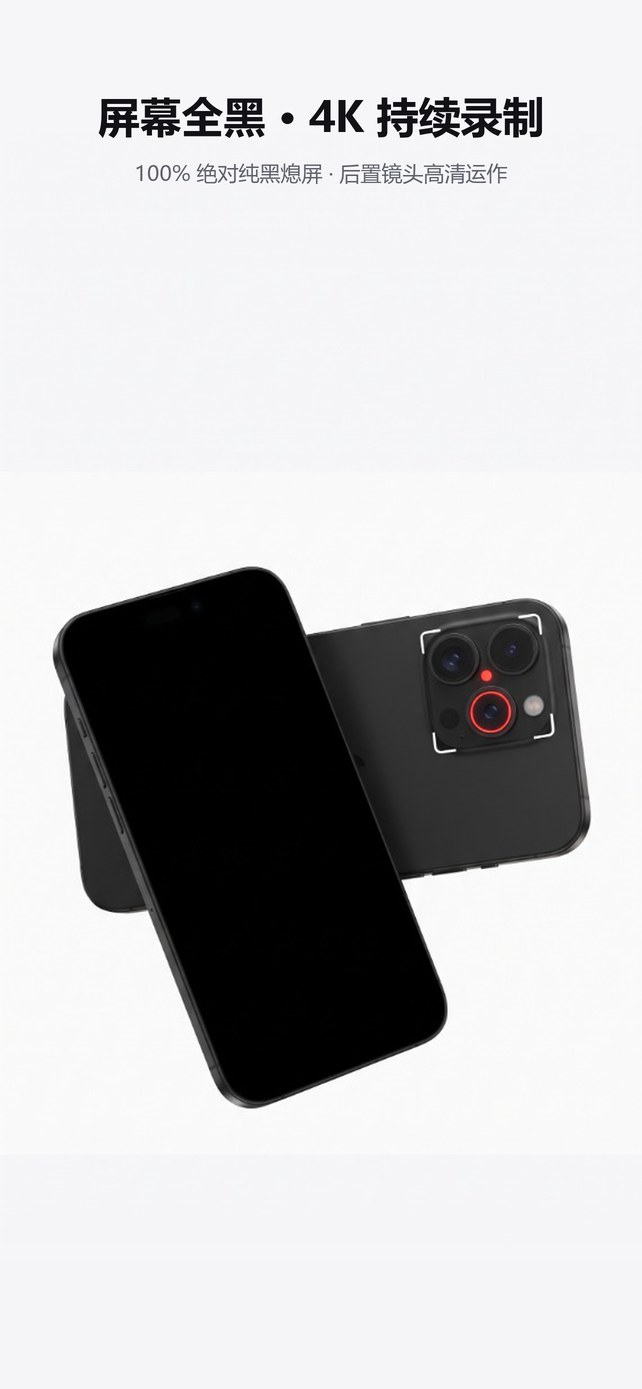
2. True 0-Nit Blackout
2. 真 0 尼特纯黑省电
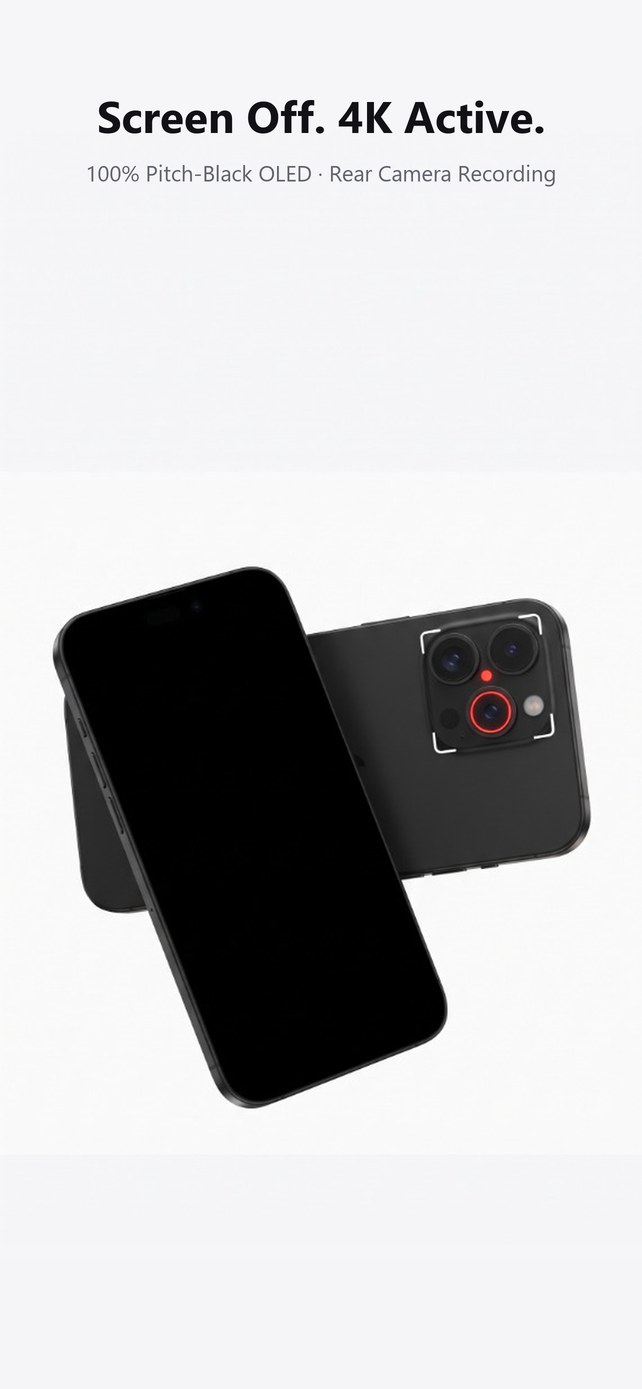
Pure #000000 OLED pixels emit zero light. Swipe home anytime to auto-save, or double-tap to open Album.
OLED 纯黑像素物理断电零发光。随时上滑回桌面自动存盘,或双击屏幕右滑直接进入相册。
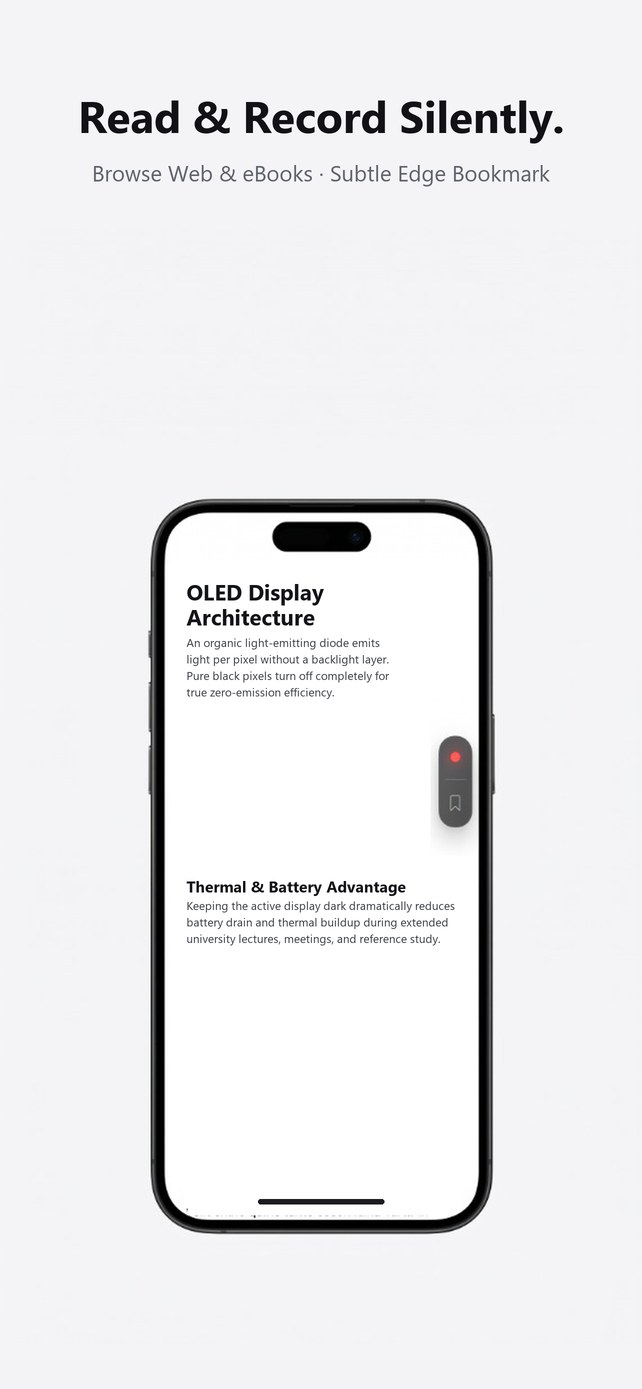
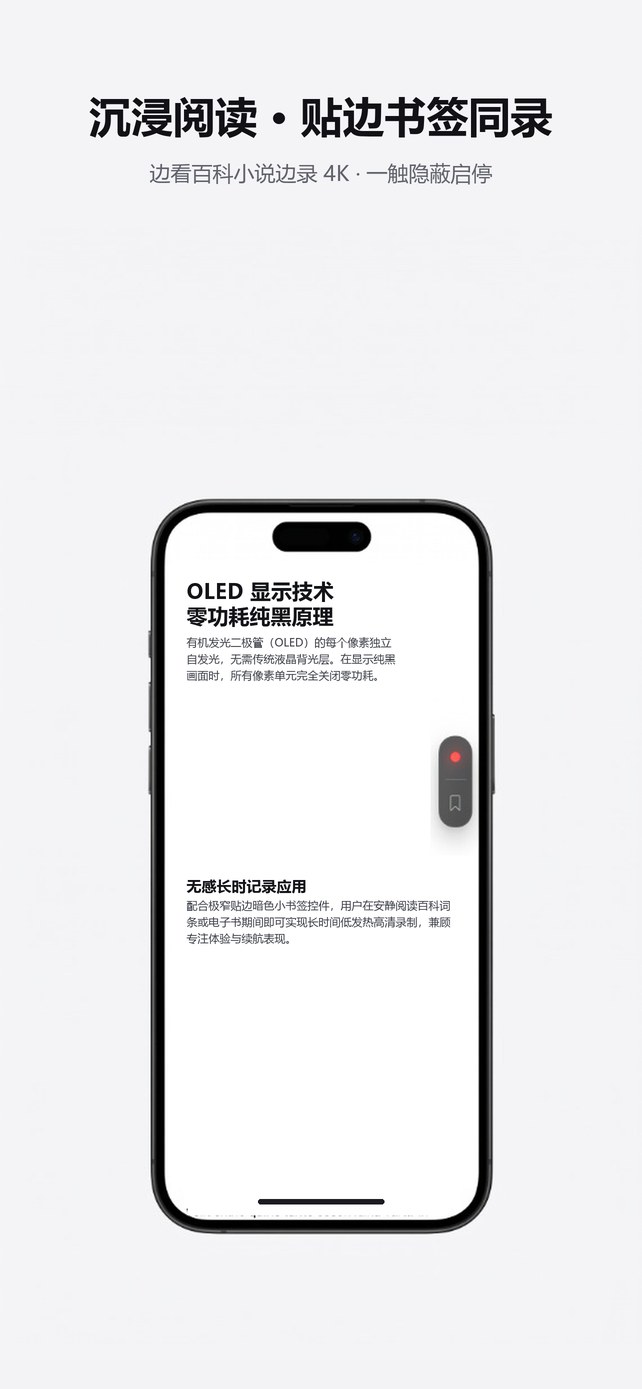
3. Web & eBook Reader Cam
3. 网页与电子书阅读同录
Browse Wikipedia, news, or Gutenberg eBooks while controlling 4K recording from a subtle edge bookmark.
自然浏览百科、小说或任意网页,通过贴边可折叠书签静默开始/停止录制或一键切入相册。
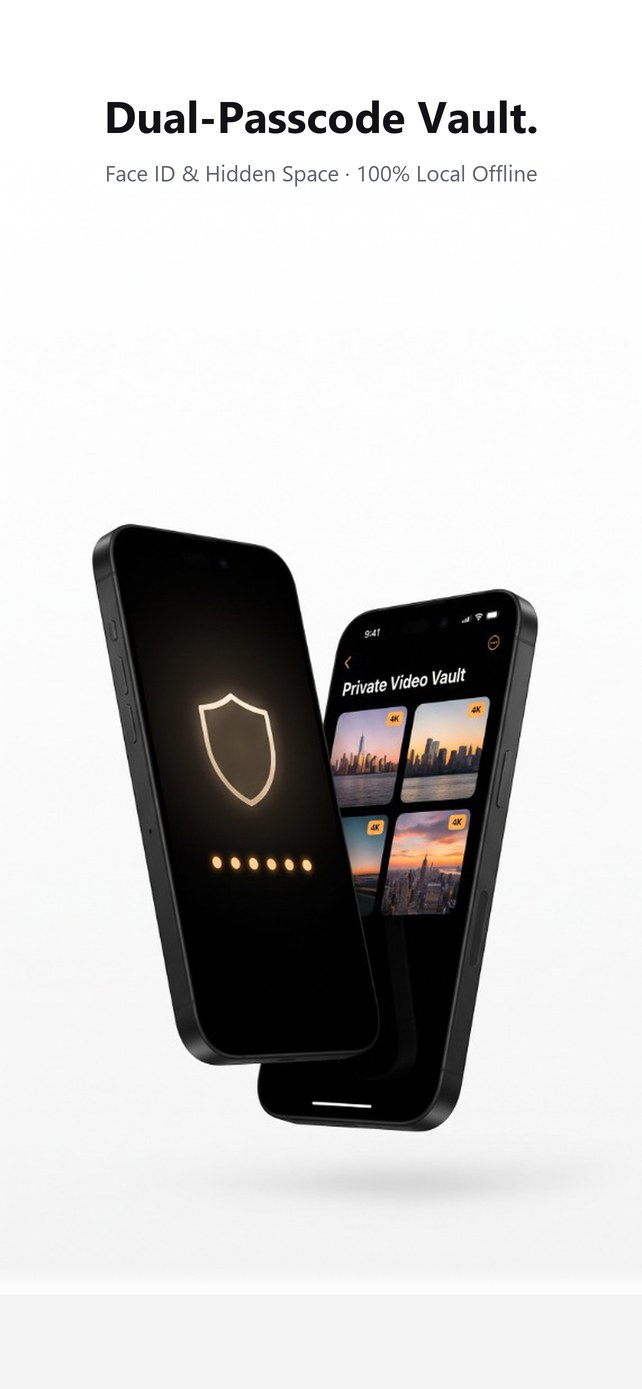
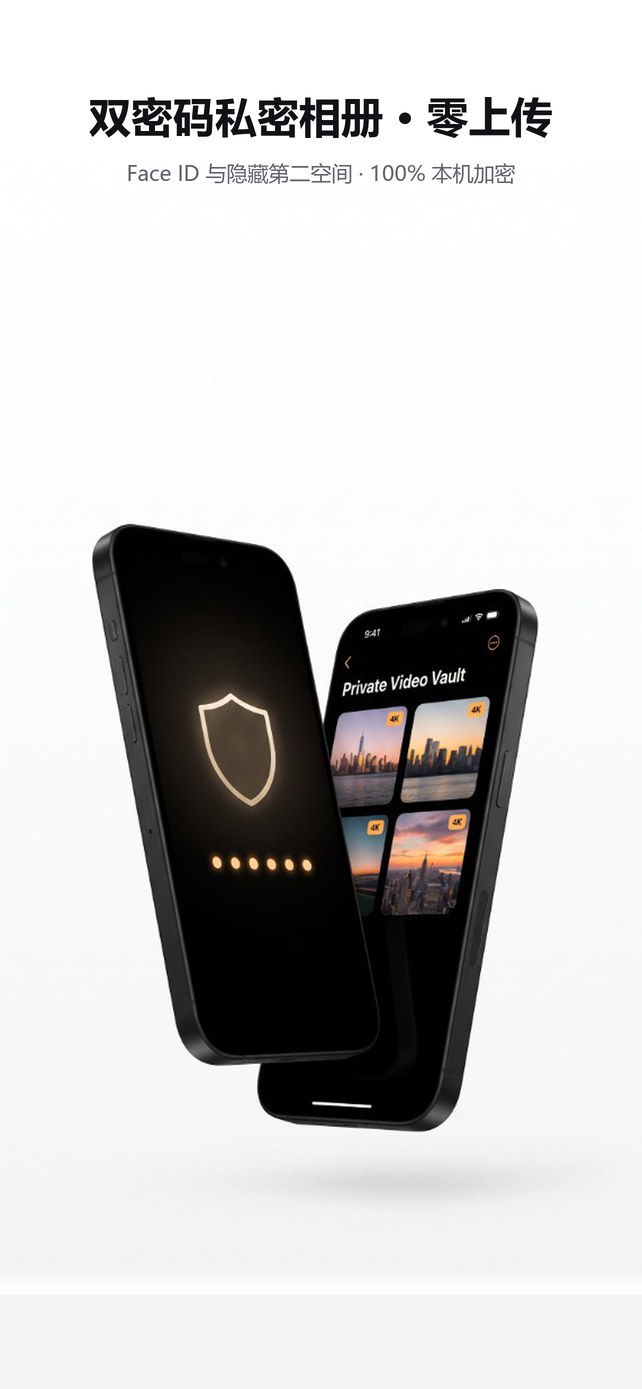
4. Dual-Passcode Vault
4. 真假双密码私密相册
Isolated local sandbox excluded from iCloud backups, protected by Face ID and two independent 6-digit passcodes.
独立本地加密目录(禁止自动云备份),支持 Face ID 秒开及主相册 / 第二空间两套独立密码。
Engineered Around Real iPhone Habits
深度适配真实 iPhone 使用习惯
Zero Glare, Normal Home Screen Brightness
真纯黑省电,绝不弄暗手机桌面
On OLED iPhones, pure #000000 pixels physically power off without hijacking iOS system brightness. Whenever you swipe up to your Home Screen, your normal display brightness stays 100% intact.
利用 iPhone OLED 屏幕纯黑像素物理不发光特性,无需强改系统全局背光。无论何时上滑退回手机桌面,您的桌面屏幕亮度始终保持正常。
Dual-Channel Auto-Save Protection
双通道防丢帧自动保存
Stop recording whichever way feels natural: simply swipe up to the iPhone Home Screen (or lock your phone) to finalize & save automatically, or double-tap the black screen and slide right to open your Album.
怎么顺手怎么停:既可以直接从底部上滑回桌面(或按电源键锁屏)自动收尾保存,也可以双击黑屏向右滑动直接打开应用内「相册」与「设置」。
Localized Global Reader Presets
全球 8 国地道阅读器预设
Built-in fast presets for Wikipedia, Project Gutenberg (70,000+ free eBooks), Hacker News, NPR Text, Aozora Bunko, Namuwiki, and custom URLs—with double-tap blind record toggle on the bookmark tab.
内置维基百科、古登堡公版书库、微信读书网页版及自由网址输入;单击右侧小耳朵展开控制栏,双击小耳朵可直接盲操启停录像并带触觉震动反馈。
100% Offline Privacy Architecture
零联网追踪 · 纯本地隐私架构
Zero accounts, zero cloud servers, zero analytics SDKs. Every recorded clip stays strictly inside your iPhone's hardware-encrypted app container until you choose to export to Photos.
无需注册登录,无任何云端服务器或第三方统计 SDK。所有视频仅保存在您手机本地沙盒中,除非您主动点击「存相册」导出。
Start Free. Upgrade Anytime.
免费下载体验 · 按需解锁专业版
Early v1.x paid App Store buyers automatically receive permanent Glimmer Pro access at no extra cost.
早期付费购买过 v1.x 正式版的老用户,升级后将通过 Apple 交易记录自动永久免费激活 Glimmer Pro。
- 1080p 30fps HD Video Recording (up to 3 min/clip)1080p 30fps 高清视频录制(单段最长 3 分钟自动存盘)
- True 0-Nit Pure Black OLED Mode真 0 尼特纯黑 OLED 省电熄屏模式
- Face ID & Primary 6-Digit Encrypted AlbumFace ID 面容识别与 6 位主密码加密相册
- Home Screen Quick Actions & Apple Shortcuts桌面长按快捷菜单与系统快捷指令支持
- Native 4K 60fps, 4K 30fps & 1080p 60fps Pro Formats解锁原生 4K 60fps / 4K 30fps / 1080p 60fps 全部超清规格
- Unlimited Continuous Recording Duration解除 3 分钟时长限制,支持无限长时连续录制直到存储写满
- Web & eBook Reader Sync Recording Mode解锁网页百科与电子书全屏阅读同步录制模式
- Dual-Passcode Isolated Secondary Vault Space解锁真假双密码隐藏第二空间(主副密码隔离不同相册)
Official User Guide & Support Center
官方使用指南与常见问题 (Support & FAQ)
Q1: How do I stop recording and open my Album when in Blackout Mode?
Q1: 处于全黑熄屏录制时,怎么停止录制并打开相册或设置?
You have two effortless ways:
• To save & open Album/Settings inside the app: Double-tap anywhere on the black screen to wake the dim clock & slider, then slide right (if you tap once, a faint 2-second hint appears).
• To save & exit straight to Home Screen: Simply swipe up from the bottom of your iPhone (or press the side lock button) at any time—your video is finalized and saved automatically! You can also long-press the Glimmer 4K app icon on your Home Screen and choose Open Album or Camera & Settings anytime.
提供两种完全符合直觉的方式:
• 想看刚录的视频或改设置:在黑屏上双击两下唤醒微光控制条,向右滑动主滑块即可自动保存录像并直接进入软件内的「相册」与「设置」(若单击黑屏一下,底部也会浮现 2 秒极暗操作提示)。
• 想直接盲操退回桌面:随时直接从手机底部上滑回桌面(或按侧边锁屏键),录像会自动安全保存!此外,在桌面长按「微光」图标也可随时直达 打开相册 或 相机与设置。
Q2: What are the default Album passcodes, and how do I export videos to iPhone Photos?
Q2: 相册初始默认密码是多少?如何导出到系统相册?
The default Primary Album passcode is 888888 (or unlock instantly via Face ID), and the Secondary Space passcode (Glimmer Pro) defaults to 000000. You can customize both 6-digit passcodes anytime by tapping the Passcode button at the top-left of the unlocked Album. Tap Save next to any clip to export it to your iOS Photos library.
主相册初始默认密码为 888888(支持 Face ID 面容秒开),Pro 隐藏第二空间初始默认密码为 000000。解锁相册后点击左上角「密码」即可随时修改。点击任一视频右侧的「存相册」或分享按钮,即可导出至 iPhone 系统相册。
Q3: How do I add standalone Blackout / Reader icons to my Home Screen or iPhone Action Button?
Q3: 如何把「熄屏」快捷方式放到手机桌面,或绑定侧边操作按钮?
Open the Apple Shortcuts app (or tap Open in Shortcuts inside Glimmer 4K Settings), find the pre-installed Blackout / 熄屏 shortcut, long-press it, and tap Add to Home Screen. On iPhone 15 Pro / 16 / 17, go to iOS Settings > Action Button > Shortcut and select Glimmer 4K's Blackout shortcut for 1-press hardware recording.
打开应用底部「设置」→ 点击【在“快捷指令”中打开】→ 长按里面的「熄屏」或「阅读」卡片并选择【添加到主屏幕】即可。iPhone 15 Pro / 16 / 17 用户还可在系统「设置 > 操作按钮 > 快捷指令」中选择微光「熄屏」,实现按一下侧边实体键直接黑屏开录。
Q4: How do I restore purchases or manage my Glimmer Pro subscription?
Q4: 换机重装后如何恢复购买?如何管理或取消订阅?
Open Glimmer 4K Settings (or the Pro upgrade sheet) and tap Restore Purchases to sync your Apple ID entitlements immediately. Subscriptions can be managed or canceled anytime in iOS Settings > Apple Account > Subscriptions. Need further assistance? Open an issue on our GitHub Support Tracker.
打开应用「设置」页顶部或升级弹窗中的「恢复购买」即可立即同步您 Apple 账户下的 Pro 权益。如需管理或取消自动续费订阅,可随时前往 iPhone 系统「设置 > Apple 账户 > 订阅」操作。如有任何反馈,欢迎通过 GitHub 官方支持反馈页 联系我们。